Install Stride
Beginner
Introduction
If you want to create games using Stride, this guide provides the installation steps you'll need to follow.
If you're interested in building the Stride engine from source or contributing to its development, please visit the Stride GitHub repository for instructions on how to build from source and contribute to the project.
Installation Steps
Download the Stride Installer from the Stride website.
Run the installer by double-clicking the StrideSetup.exe file and follow the on screen instructions until the Stride Launcher is installed.
Open the launcher.
The Stride Launcher prompts you to install the latest version of Stride.
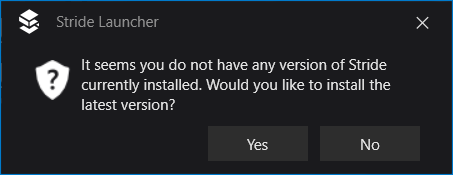
Click Yes to install the latest version.
(Optional) The Stride Launcher asks if you want to install the Visual Studio integration. Installing it isn't mandatory and it can be done later with the launcher. For more information, visit this section.
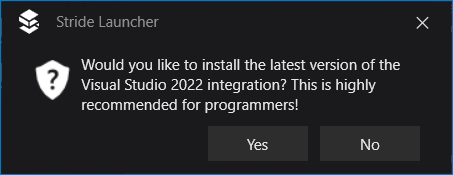
Click Yes to install the integration, or No to skip.
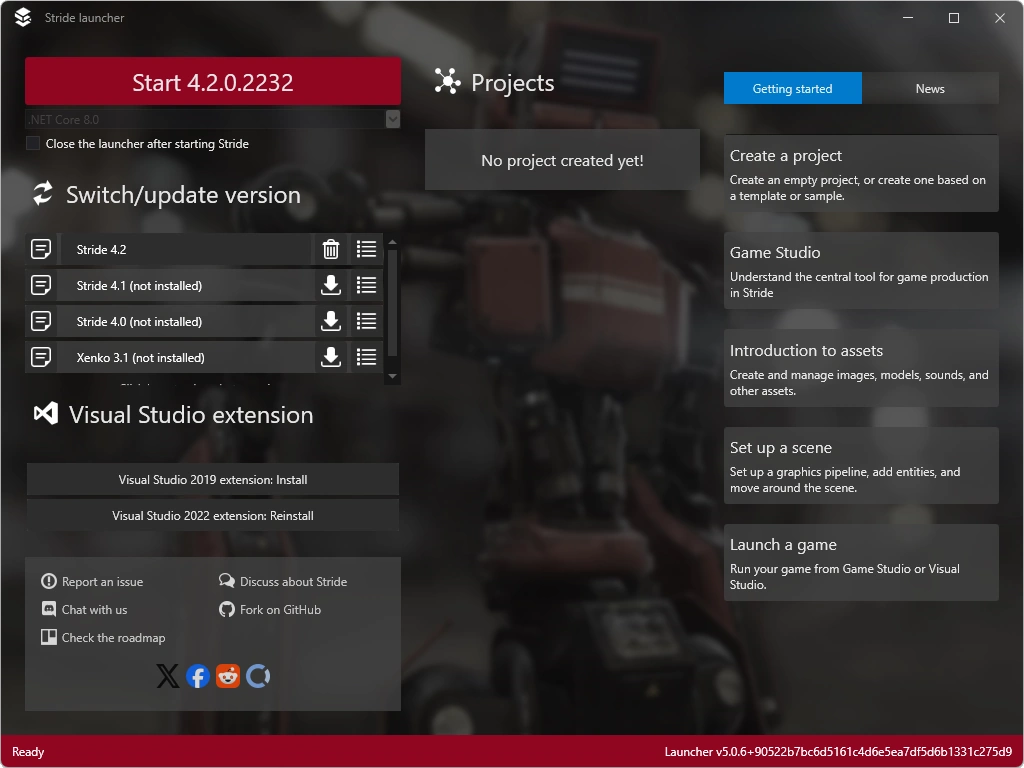
Stride is now installed and ready to use.
Installation Location
The engine and it's editor Game Studio are a NuGet package, which is the packaging format used in C# projects. This means that Stride's installation location is managed by the NuGet package manager and can't be easily changed by the user.
Changing the installation location is possible, but this is outside of the scope of this page.
Stride Extension
Stride has an optional extension that's avaliable for some IDEs.
- 🟩 What it does: let's you write shaders directly in Visual Studio.
- 🟥 What it doesn't do: provide C# syntax highlighting for Stride (that works without the extension).
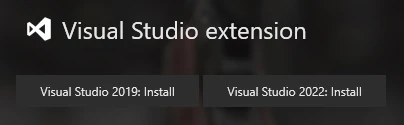
The extension can be installed for Visual Studio via the launcher, by navigating to the Visual Studio extension section. For other IDEs, visit the Stride Extension page.
Note
The "Visual Studio 2022: Install" button will also work for Visual Studio 2026.
Troubleshooting
Could not find a compatible version of MSBuild. or Path to dotnet executable is not set.
If you click Start and see one of the above error messages, close the Stride Launcher and restart it. This issue is caused by the Stride Launcher not detecting the .NET SDK installation. Restarting the Stride Launcher should resolve the issue. Alternatively, restart your computer.
Example error: 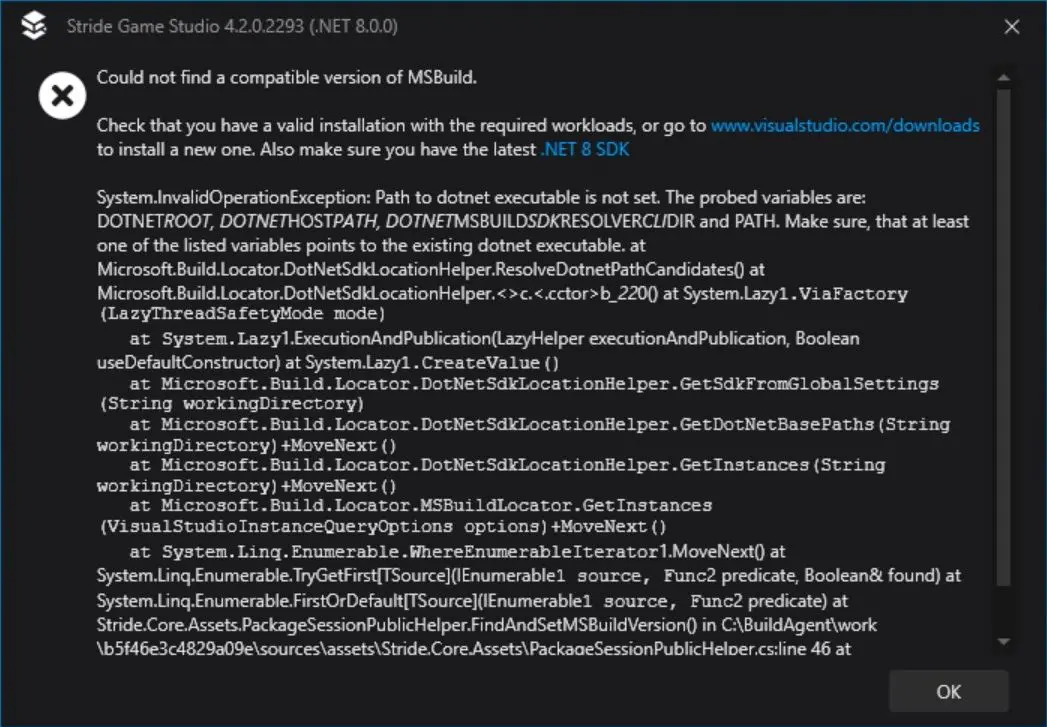
Stride still refuses to open
If you are still having issues with getting Stride to run, see Troubleshooting — Stride doesn't run.